
Multi-Factor Authentication (MFA) & Password Reset
What to Expect
- Takes about 2–3 minutes
- Only required once
- Happens automatically when you log in
Available Authentication Methods
- Microsoft Authenticator Mobile App (recommended) – an app on your mobile device that allows you to approve a sign in with the touch of a button or from a passcode available in the app.
- Phone Number – a cell phone that you have access to. Codes are sent via text or call.
Choose Option
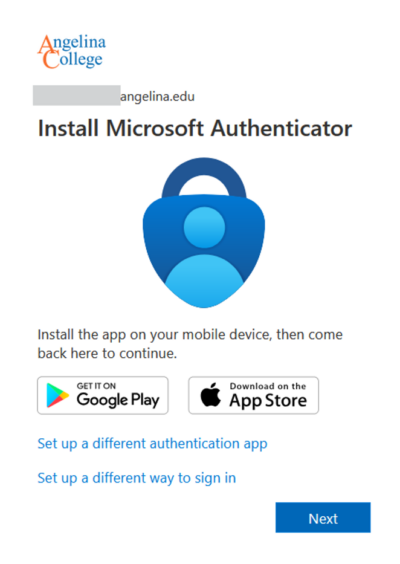
Option 1: Authenticator App (Recommended)
- Download Microsoft Authenticator | Apple | Google
- Log in using your AC email address as your username and your student ID as your password. Then click Next.
- If your ID starts with a “900”: Use a zero before your ID, i.e. 0 (zero) + your Student ID number (example: 090045678).
- Open the app and scan the QR code
- Approve the sign-in request
- Download detailed instructions on using the app (PDF)
Option 2: Phone Number
- Log in using your AC email address as your username and your student ID as your password. Then click Next.
- If your ID starts with a “900”: Use a zero before your ID, i.e. 0 (zero) + your Student ID number (example: 090045678).
- Click Next on the prompt
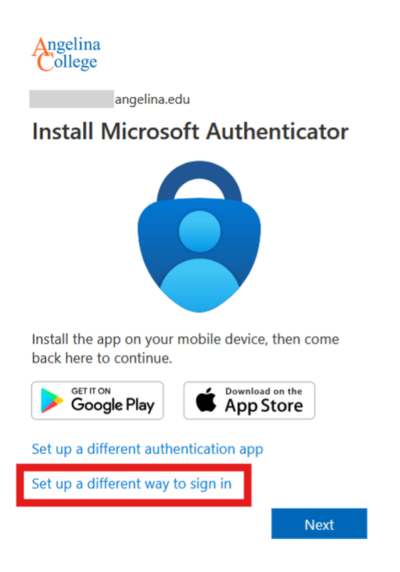
- Select Set up a different way
- Choose Phone
- Enter your phone number
- Enter the code sent to your phone
- Download detailed instructions on using text/phone messaging (PDF)
Add a Backup Method (Optional but Smart)
Add another way to sign in, in case you lose your phone:
https://aka.ms/mfasetup
Download detailed instructions on setting up a backup method (PDF)
Important: Back Up Your Files
Before May 18, 2026, students should save any files from OneDrive to:
- Their computer
- A USB drive
- Google Drive or another cloud service
Files not backed up may be lost.
Frequently Asked Questions
Forgot Your AC Password?
Self Service Password Reset Instructions
Self-service password reset allows you to reset your password on your own, without needing to contact the Service Desk. For this to work, you need to have already registered a device for MFA (multi-factor authentication).
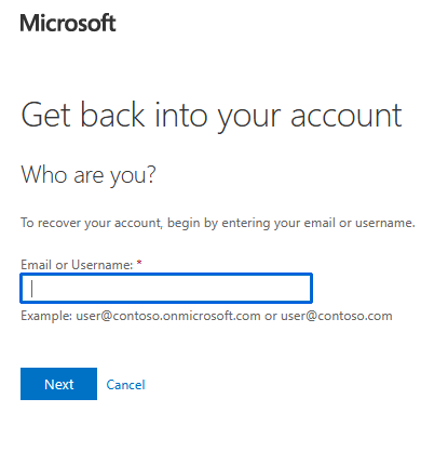
1. Go to https://passwordreset.microsoftonline.com/
2. Enter your full AC email address in the “Email or Username” field and click “Next” (if prompted,
enter the characters displayed in the image or audio)
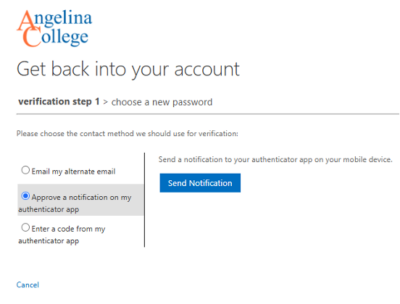
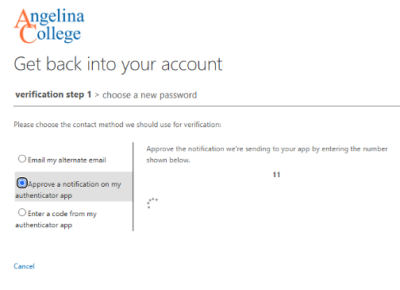
3. Select “Approve a notification on my authenticator app” and click “Send Notification”
*You may have other methods available such as phone, text, or alternate email if you set up a different MFA method or recovery personal email.
4. Enter the displayed verification number in your authenticator app notification.
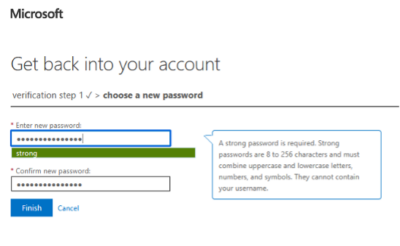
5. Enter your new password, confirm, and click “Finish”. Once your password has been reset successfully, you may now close the tab and attempt to log back into your application (email, myAC portal, etc.) using your new password.
Please consider the following suggestions when choosing a new password:
- Do not reuse a recently used password.
- Use a password that is at least 12 characters long.
- Include a mix of uppercase letters, lowercase letters, numbers, and special characters.
- Avoid using personal information such as your name, username, birth date, employee/student ID; or common words such as school name, colors, or mascot.
- Do not use common passwords such as “Password123”, “Welcome123”, or similar variations.
- Avoid simple patterns such as keyboard sequences (Qwerty, 123456) or repeated characters.
- Choose a password that is unique and not used on other websites or services.
If you experience issues or need help resetting your password please email the IT Helpdesk at ithelpdesk@angelina.edu.
Need Help?
Email ithelpdesk@angelina.edu to submit a ticket to the IT Helpdesk.